Thumbnail template
Create a YouTube thumbnail that earns the click
Create a YouTube thumbnail with a bold headline and split layout.
Make this with my informationOpens an editable creation brief. Nothing runs until you submit.
- Format
- Thumbnail
- Last updated
- September 17, 2026
- You bring
- 3 inputs
- By
- Huggle Editorial
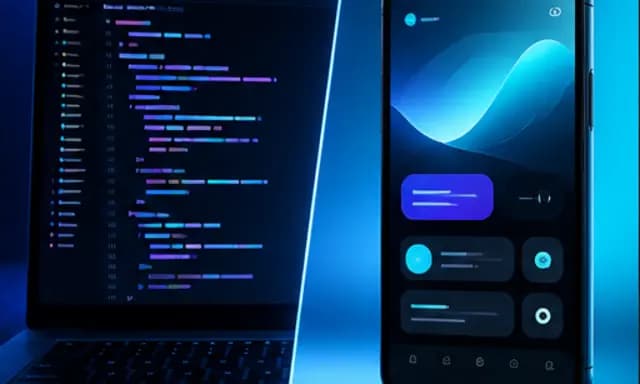
The creation brief
This template is for creators and educators who publish tutorials, reviews, or comparisons. Huggle builds the composition and type treatment; you bring the video’s promise.
Creation recipe
Create a 16:9 YouTube thumbnail for a coding tutorial. Split composition: a dark code editor with colorful syntax on the left, the finished app on a laptop or phone on the right, with a diagonal divide between them. Bold headline ‘Build This in 10 Minutes’ in heavy sans-serif, white with a subtle dark outline, top-left, no more than five words. High contrast, saturated accent color, readable at 320 pixels wide. No channel logos, watermarks, or small text.
What Huggle creates
- A 16:9 thumbnail with a clear before/after or split composition
- A three-to-five-word headline that reads at phone size
- Contrast and saturation tuned for the YouTube grid
What to bring
- 01What the video teaches, reviews, or compares
- 02The promise you want in the headline, in five words or fewer
- 03Any face, product, or screenshot that has to appear
Overview
What is a YouTube thumbnail?
A YouTube thumbnail is the 16:9 still image shown in search, suggested videos, and the subscription feed before anyone presses play. It competes with a dozen neighbors at roughly the size of a postage stamp, so it needs one clear subject, one short promise, and enough contrast to read on a phone in daylight.
What's included
What this AI thumbnail generator produces
Split composition
Left side shows the work, right side shows the result, divided on a diagonal. It is the most reliable tutorial format because it promises a transformation without needing a face. Swap in your own before and after.
Headline treatment
Heavy sans-serif, white with a dark outline, top-left, five words maximum. The prompt caps the word count because thumbnails with long text lose at small sizes. Your promise goes here.
Contrast for the grid
Saturated accent color against a dark base, no fine detail. The brief asks for legibility at 320 pixels wide, which is roughly what a phone shows in the home feed.
No clutter
No logos, watermarks, or captions. YouTube already shows your channel name and duration; the thumbnail only has to sell the video. Add a face later if your channel relies on one.
Comparison
Huggle vs. a thumbnail template pack
Template packs give you a PSD with layers to replace. This prompt gives you a finished thumbnail you can iterate on by talking.
| Criterion | Huggle | Static template |
|---|---|---|
| Starting point | A rendered thumbnail with your subject and headline | Layered file with stock screenshots |
| Testing variants | Ask for two more headlines or a different accent color | Edit layers and export each one |
| Legibility | Prompt enforces a five-word cap and phone-size contrast | Up to you |
| Tools needed | None beyond Huggle | Photoshop or Figma |
Sources
Sources and benchmarks
- YouTube reports that 90% of the best-performing videos on the platform use a custom thumbnail rather than an auto-generated frame. YouTube Help, “Add video thumbnails”
How it works
From example to your finished artifact
- 01
Start from the proven recipe
Open Huggle with the complete creation brief already in the composer.
- 02
Add your context
Answer a few focused questions so the subject, copy, and visual direction fit your situation.
- 03
Create and refine
Generate the media, then ask Huggle for a different crop, palette, hook, or another take until it is ready to use.
Use the recipe
Make a version that belongs to your work.
Huggle will ask for the missing context, then create an editable image you can keep refining.
Frequently asked questions
- What is an AI YouTube thumbnail generator?
- It turns a description of your video into a 16:9 thumbnail image. Huggle generates the composition, colors, and headline from this prompt and revises on request.
- What size is a YouTube thumbnail?
- YouTube recommends 1280×720 pixels at 16:9. Ask Huggle to export at that size once the design is right.
- Can I add my face to the thumbnail?
- Yes. Attach a photo and tell Huggle where it should sit and what expression to keep. The split layout has room on either side.
- How many words should the headline have?
- Three to five. The prompt caps it at five because more than that stops reading at phone size.
- Does this work for reviews and comparisons?
- Yes. Replace the code-and-app split with the product and a rating, or two products with a VS divider. The composition logic is the same.
- Can I generate several thumbnails to A/B test?
- Yes. Ask for three versions with different headlines or accent colors in the same conversation and upload them as YouTube test variants.
- What information do I need to bring?
- Bring the topic of the video, your five-word promise, and any face, product, or screenshot that must appear.
- How do I use this thumbnail template?
- Open Huggle with the prompt in the composer, describe your video and headline, and generate. Iterate until it reads at a glance.
Related templates
3 artifacts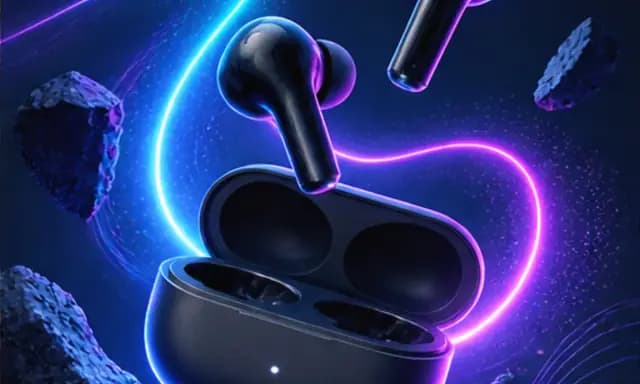
Product launch graphic
Announce your product with a square graphic and headline.
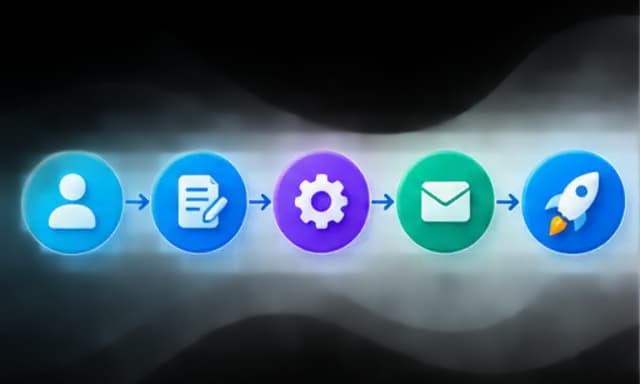
Process infographic
Explain a process with numbered steps, icons, and arrows.
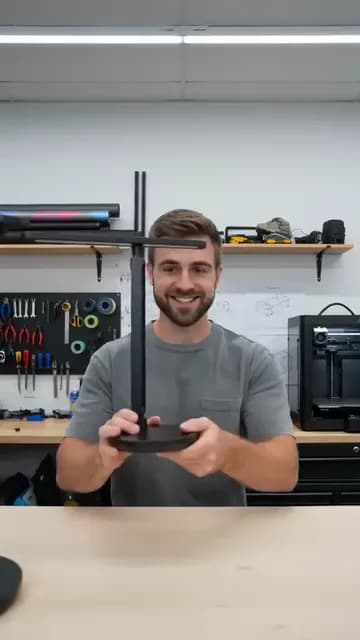
Founder explains the product
Create a vertical video of a founder demonstrating a product.
Also explore product launch graphic template for Instagram, process infographic template with five steps and founder explains the product video template.